

TL;DR
How To Force Restart iPad (Any Models)
- iPad with Home button: Hold Home + Power until the Apple logo appears (about 8–10 seconds).
- iPad without Home button: Volume Up (quick press) → Volume Down (quick press) → hold Power until the Apple logo appears.
- If you’re force restarting more than once a week, the freeze is a symptom — not the problem. Skip to the 7 Warning Signs (#warning-signs).
We get calls almost every day from customers panicking that their iPad has frozen, gone black, or is stuck on the Apple logo. In our experience, most of them just need a force restart — a 10-second trick that Apple built into every iPad. Many of them don’t know the correct way on How to Force Restart iPad or they did but they did the wrong way. But some of them are dealing with something more serious, and no amount of restarting will save the device.
This guide is for iPad users in Malaysia who want to know two things: how to force restart iPad properly, and when the freezing is actually a warning that your iPad needs to come in for repair.
Important: This is NOT a factory reset guide. A force restart will NOT delete your photos, apps, messages, or any data. It is the same as turning your iPad off and on again — just forced, because the screen has stopped responding. That is why this guide is called “How To Force Restart iPad”.
Table of Contents
What a Force Restart Actually Does
A force restart cuts power to your iPad’s logicboard and reboots iPadOS from scratch — without touching any of your data. Apple officially calls this a “force restart” (not a reset, not a factory reset) and it is their recommended fix whenever an iPad becomes unresponsive (Apple Support: How To Force restart iPad).
Based on what we encountered so far at KissMyMac®, most frozen iPads we get over the counter are solved by a single force restart — and the customer goes home happy without paying a cent. But a meaningful number are not, and those are the ones we want you to know how to spot.
Note: Force Restart iPad is completely safe. Apple designed iPads to handle this. You cannot damage your iPad by force restarting it.
How To Force Restart an iPad
How to Force Restart an iPad (WITH Home Button)

This applies to: iPad (9th gen and earlier), iPad Air (1st & 2nd gen), iPad mini (1st–5th gen), iPad Pro 9.7″ and 12.9″ (1st gen).
If your iPad has a physical round Home button below the screen, this is you.
- Press and hold the Home button and the Top (Power) button at the same time.
- Keep holding both — even when the screen goes black. Do not let go.
- Release both buttons the moment the Apple logo appears (usually 8–10 seconds).
- Wait 30 seconds for iPadOS to finish booting.
What to Do if it doesn’t work the first time: Press harder. The Number 1 reason customers tell us “I tried already, doesn’t work” is that they were pressing the Home button too softly — especially if the iPad is in a thick case. Take it out of the case if you have to and try again.
How to Force Restart an iPad (WITHOUT Home Button)

This applies to: iPad Pro 11″ (all generations), iPad Pro 12.9″ (3rd gen and later), iPad Air (4th, 5th, 6th gen), iPad mini (6th gen), iPad (10th gen and later).
If your iPad has no Home button — just a flat front with a thin bezel — this is you. This is a 3-button sequence, not a 3-button hold. The order and the timing both matter.
- Press and quickly release the Volume Up button.
- Press and quickly release the Volume Down button.
- Press and hold the Top (Power) button. Keep holding.
- The screen will go black after about 5 seconds. Keep holding.
- Release the Power button when the Apple logo appears (usually 10–12 seconds total).
What to Do if it doesn’t work: The most common mistake we see — and we mean very common — is people letting go of the Power button when the screen goes black. Do NOT release at the black screen. That is just the iPad shutting down. You have to keep holding through the black screen until the Apple logo appears. If you let go too early, the iPad just turns off, and you have to press the Power button again to wake it up.
7 Warning Signs Your iPad Needs Professional Repair
Now for the part most articles skip. A force restart is a band-aid. If your iPad keeps freezing and any of the signs below sound familiar to you, the freezing is a symptom of something deeper — and it will keep coming back, and usually get worse over time.
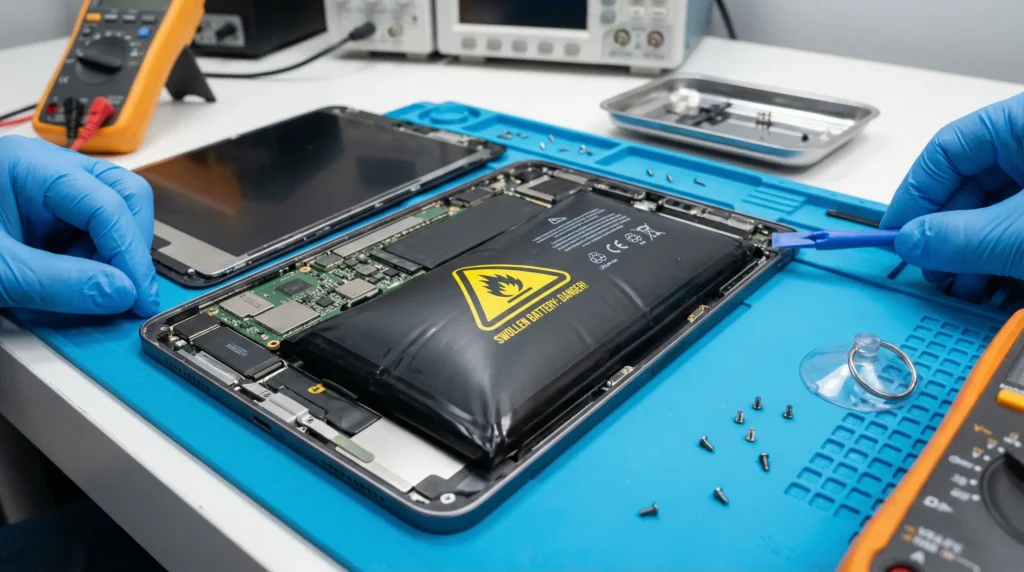
Throughout our years of experience repairing iPads in Malaysia, these are the 7 warning signs we wish more customers knew about before they brought us a device that was beyond saving
| No. | Warning Sign | What We Usually Find |
| 1 | You force restart more than once a week | Failing battery or storage chip — early stage, still very fixable |
| 2 | iPad gets Hot Before Freezing | Battery swelling or logicboard fault |
| 3 | Stuck on Apple Logo even after force restart | Corrupted iPadOS or NAND storage failure |
| 4 | Screen has flickering, lines, or dead zones before freezing | Digitizer Faulty or Screen faulty |
| 5 | Freezes only while charging | Charging port or charging IC failure |
| 6 | Back Of the iPad Feels Bulged or Uneven | Battery swelling – stop using the iPad Immediately |
| 7 | Freezes Started After A Drop OR Liquid exposure (water, coffee, milo, etc.) | Internal damage to logic board or connectors |
Sign #6 is the urgent one. A swollen iPad battery is a fire and injury risk. Do NOT charge it, do NOT squeeze it back into a tight case, and do NOT try to pry it open yourself. Apple’s own guidance is to stop using a device with a swollen battery and get it serviced immediately (Apple Support: iPhone and iPad battery service).
We see swollen iPad batteries everyday at KissMyMac®. If this is you, bring it in today — we’ll handle it safely. Diagnosis is FREE (https://kissmymac.my/), no appointment needed
What to Do if Force Restart Doesn’t Work
Before you assume your iPad is dead, try these in order:
- Plug into a wall charger for 15 minutes, then try the force restart again. A fully drained battery cannot boot — even though it looks “off”, it actually needs juice first. This alone solves a lot of “my iPad won’t turn on” calls we get.
- Use a different cable and adapter, preferably an Apple-certified one. We’ve seen plenty of customers convinced their iPad was dead when the real culprit was a frayed cable from the car charger.
- Try recovery mode by connecting to a Mac or PC (Apple Support: If your iPad won’t turn on). This can sometimes reinstall iPadOS — but it WILL erase all your data, so think carefully before doing this. If your photos are not backed up, please don’t.
- Check for physical damage around the Power button, Home button, and charging port
If none of these work, the iPad is telling you that whatever is wrong is not something a software fix can solve. At this point, please don’t waste another hour Googling — just bring it to us. We provide iPad Repair service in Malaysia from iPad Screen Replacement, iPad Battery Replacement, iPad Logicboard Repair, etc.
Why book a FREE Diagnosis at KissMyMac®?
• It’s FREE. No commitment. No charge. We’ll tell you exactly what’s wrong, in plain language, in under 30 minutes.
• No Fix, No Fee. If we can’t repair your iPad, you don’t pay a cent.
• You keep ALL your data. Not a single folder will be lost. We know that for our customers, the photos and messages on the iPad are worth more than the device itself.
• iPad repair pricing starts from RM270 – RM2,300, depending on the issue. We’ll give you a fixed quote before any work begins — no surprise charges, ever.
• 3 locations across Malaysia: Taman Desa Kuala Lumpur · Damansara Uptown PJ · Seremban
Book your FREE iPad diagnosis at KissMyMac® → (https://kissmymac.my/service-request//)
Stay far from KL? WhatsApp us first — we’ll often diagnose the likely issue from your description before you make the trip. Even if you come all the way to us, we help you to Force Restart iPad, we also don’t charge you a single cent.
What does a Force Restart iPad actually do?
A force restart cuts power to your iPad’s logicboard and reboots iPadOS from scratch, without erasing any data, apps, or settings. It’s Apple’s official recovery procedure for an unresponsive iPad and is completely safe to use whenever the screen has frozen or stopped responding to your touch.
How do I force restart iPad without a Home button?
Press and quickly release Volume Up, press and quickly release Volume Down, then press and hold the Top (Power) button until the Apple logo appears — usually 10–12 seconds. Keep holding through the black screen. This works on all iPad Pro, iPad Air (4th gen and later), iPad mini (6th gen), and iPad (10th gen and later) models.
My iPad is not responding to touch — how do I fix it?
First, plug it into a wall charger for 15 minutes in case the battery is fully drained. Then force restart using the method for your iPad model (Home button: hold Home + Power; No Home button: Volume Up → Volume Down → hold Power). If the iPad still won’t respond, it likely has a hardware fault — please bring it in for a free diagnosis at KissMyMac® before things get worse.
Will a force restarting iPad delete my photos or apps?
No. A force restart only reboots iPadOS — it does not touch your photos, apps, messages, or settings. It’s the same as turning your iPad off and on again, just forced when the screen is unresponsive. We mention this because many of our customers ask, and we know how stressful the fear of losing data can be.
How long should I hold the buttons to force restart iPad?
For Home-button iPads, 8–10 seconds. For newer iPads, hold the Power button for 10–12 seconds after the Volume Up and Volume Down presses. If the Apple logo hasn’t appeared after 20 seconds, your battery may be completely flat — charge it for 15 minutes and try again.
Why does my iPad keep freezing even after a force restart?
However, this is the part many people don’t realise: repeated freezing usually points to a failing battery, corrupted iPadOS, or a hardware fault on the logicboard. Force restart iPad treat the symptom, not the cause. If it’s happening more than once a week, please get a professional diagnosis before the iPad fails completely. The earlier we see it, the cheaper the repair.
Is force restart iPad the same as factory reset on an iPad?
No. Force Restart iPad reboots your iPad without touching your data. A factory reset erases everything and returns the iPad to its out-of-box state. If someone tells you to “reset” your iPad to fix a freeze, please make sure they mean restart, not factory reset. We’ve had customers walk into our shops in tears because someone told them to “reset” their iPad and they lost years of family photos.
My iPad is stuck on the Apple logo after force restart — what now?
This is what we call a “boot loop” and it usually means iPadOS is corrupted, the storage chip (NAND) is failing, or there is a potential short circuit on the iPad Logicboard. Plug into a Mac or PC and try recovery mode — but remember, this will erase your data. If that fails, you’re looking at a hardware-level repair. The good news: at KissMyMac®, we do logicboard-level repairs that Apple Authorised Service Providers will only solve through full (and very expensive) replacements. We can often save your data even when Apple cannot.
Can I damage my iPad by force restarting it?
No, you cannot. Apple designed the force restart specifically for unresponsive iPads — it is a safe, supported procedure. The only way to damage your iPad is by ignoring repeated freezes and continuing to use a device with a failing battery or logicboard.
Conclusion
Knowing how to force restart your iPad is the first thing every iPad owner in Malaysia should learn. It will save you a panicked trip to a service centre at least once in your iPad’s life, and that’s exactly why we wrote this guide.
But please remember: a force restart is a first response, not a cure. If your iPad keeps freezing, gets hot, has a swollen back, or simply won’t behave even after you tried everything in this guide — please don’t wait. We’ve seen plenty of iPads come in too late, where a simple battery replacement (RM270 to start) could have prevented a logicboard repair (RM1,000+) if only the customer had brought it in earlier.
A working iPad is a happy iPad, and a happy iPad is one less thing for the family to worry about. 🙂
Book your FREE iPad diagnosis at KissMyMac® → (https://kissmymac.my/service-request/)
Apple Certified Independent Repair Provider in Malaysia · 3 locations · No Fix, No Fee · You keep all your data
Available in Taman Desa KL · Damansara Uptown PJ · Seremban
Written By:
I am the KissMyMac® Malaysia Technician, an Apple Certified Technician at KissMyMac with More than 8 Years Of Experience In The Apple Repair Industry. We specialize in Macbook Repair & Upgrade, iMac Repair, iPhone Repair, iPad Repair in KissMyMac. We have dealt with more than 30,000+ Apple repairs throughout our years working in this industry, from a small repair shop to where we are now with 3 branches across Malaysia – KissMyMac Kuala Lumpur, KissMyMac Petaling Jaya, and KissMyMac Seremban