
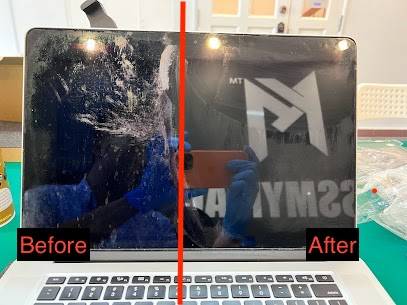
MacBook Staingate is a common issue on Retina MacBooks where the screen’s anti-reflective coating wears off, causing stains and patchy marks. This guide explains how to identify Staingate, what repair or cleaning options are available, and when a screen replacement is necessary. Understanding MacBook Staingate helps you decide the safest and most cost-effective fix.
If you own an Apple Macbook Pro Retina model manufactured from mid-2012 to mid-2015, you are no stranger to this issue where your MacBook Retina screen has a layer of “dirt” which you cannot clean or remove. Macbook staingate users are facing the Macbook staingate issue, causing them frustration while using the Macbook. It looks like a layer of dirt, but whenever they try to wipe it off, it is almost impossible to wipe it off. Some even went to the extent of replacing the entire display unit. However, some of the newer Retina models, Macbook Pro manufactured from 2016 to 2018 and Macbook Air manufactured from 2018 are seeing effects of a similar issue.
Before reading on, let us give a little disclaimer:-
Before Proceeding On The methods taught in this article, we hold no responsibility for any damage caused by the methods taught in case you break or damage your MacBook screen. We are just sharing the experience we had and the applications we applied to resolve the issue (with success from ourselves and our customers).
What Is Macbook Staingate Issue on the Macbook Pros and Macbook Air Retina?
Macbook Staingate simply means the anti-reflective coating wearing off on the Macbook Screen under a variety of circumstances, including the pressure from the keyboard keys and trackpad once the display is closed, stains or blemishes, creating a blurry effect on the surface which is not cleanable not matter what solution you use to clean it with (unless specified below).
This issue typically happens on the screen of the MacBook Pro, which is not removable by regular cleaning. It is a manufacturing defect Upon closer inspection, the stain appears to be caused by the anti-reflective coating peeling off. Once the issue begins, the peeling spreads to different areas of the screen over time. Because of the anti-reflective coating peeling off, the screen has more glare in the spaces where the anti-reflective coating is absent.
What is causing Macbook Staingate Issue ?
It is still unclear what is the cause of the macbook staingate issue is on the Retina Macbook Pro and Macbook Air. Based on our research on this topic, Macbook Staingate happened it could be due to heat and abrasion.
Based on our research and our experience as a Macbook Repair Specialist in Malaysia, here is a list of possibilities that could cause Staingate Issue On Your MacBook:-
– Touching the display too much
– Oil and sweat residue on the trackpad and keyboard when you close the lid.
– Heat dissipated from the CPU Fan
– Use Of Strong Display Cleaner
– Using a rubber keyboard protector (which Apple certainly does not recommend)
Can Macbook Staingate Issue Be Fixed?
In October 2015 several tech media outlets reported that Apple launched a “quality program” under which the entire screen panel of the affected laptop could be replaced free of charge. The program reportedly applied to affected units manufactured in 2013, 2014, or 2015 for up to four years after the machine’s original purchase date. In November 2017, it became known that Apple would be extending the screen replacement program. If Apple has certified that the machine is not eligible under the replacement program, then you can consider using the techniques mentioned below.
The number of success cases on removing staingate on the affected Macbook Pro Retina models is impressive. However, we would like to remind you to DO IT AT YOUR OWN RISK.
How To Remove Staingate On Macbook Pro Retina?
Tools You Need To Remove Macbook Staingate:-
1. Soft Piece Of Clean Cloth (Micro Fibre from DIY shop works perfectly well) to prevent any scratches on the screen during the cleaning process. Advisable to use brand new piece of cloth to avoid the cloth having any residue from previous usage which could potentially damage the screen.
2. A bottle Of Listerine Mouth Wash (Yes! You did not see it wrongly!)
How To Clean Staingate:
Pour a few drops of Listerine on the cloth and gently clean the screen in a circular motion. (NOTE: DO NOT POUR IT DIRECTLY ONTO THE SCREEN AS IT MAY CAUSE THE LISTERINE TO FLOW TO THE INTERNAL OF THE SCREEN & DO NOT APPLY TOO MUCH PRESSURE WHILE CLEANING.)
Other Methods To Remove Macbook Staingate Issue
There are many DIY methods to remove Macbook staingate issues that are available on the Internet. However, the above method works for us and most of our customers without any issues. If you are adventurous and would like to go beyond the tradition, below are a few other tools that you can try to remove your macbook staingate issue on your macbook:-
– Clorox Wipes (Basically Wet Wipes)
– Baking Soda
– Hand Sanitizing Alcohol– Tinner (Not recommended as it is too strong and it may damage the screen layer)
List Of Macbooks Affected With Staingate Issue.
Macbook Staingate Issue Is Happening On your Macbook? Found your Macbook model listed below? Contact Apple Support to consult whether is your Macbook under the replacement program. Below is the list of Macbooks Affected With Staingate Issue based on a source:-
– MacBook Pro (Retina, 13-inch, Late 2012),
– MacBook Pro (Retina, 15-inch, Mid 2012),
– MacBook Pro (13-inch, Early 2013),
– MacBook Pro (15-inch, Early 2013),
– MacBook Pro (13-inch, Late 2013),
– MacBook Pro (15-inch, Late 2013),
– MacBook Pro (13-inch, Mid 2014),
– MacBook Pro (15-inch, Mid 2014),
– MacBook Pro (13-inch, Early 2015),
– MacBook Pro (15-inch, Mid 2015),
– MacBook Pro (13-inch, 2016),
– MacBook Pro (15-inch, 2016),
– MacBook Pro (13-inch, 2017),
– MacBook Pro (15-inch, 2017),
– MacBook (12-inch, Early 2015),
– MacBook (12-inch, Early 2016),
– MacBook (12-inch, Early 2017).
Additional: Here is a list of replacement programs offered by Apple.
Final notes
Please take note that after cleaning the anti-reflective coating from your Macbook, the Macbook screen may look like a Mirror. There are no applications to re-apply the anti-reflective coating available in the market. If you feel uncomfortable, you can grab a piece of screen protector from Shopee or Lazada.
On newer MacBook models running on Apple Silicon Processor (Macbook Air and Macbook Pro M1, M2, M3, and above, the only way to solve the problem is MacBook Screen Replacement. We can replace the MacBook LCD only which saves you 30%- to 50% from a full panel replacement.
If you do not want to take the risk to remove Macbook Staingate, you can contact us by Booking A Service To Remove Your Macbook Staingate Issue.