

By the KissMyMac® Repair Team — Apple Certified Independent Repair Provider · Last verified: September 2026
TL;DR
- Seven signs matter: beachballing on simple tasks, files that will not open, random restarts, a drive that appears and disappears, Disk Utility First Aid failing, a Mac that goes read-only, and the flashing folder with a question mark.
- The honest bad news: modern SSDs usually give no warning at all. Old spinning hard disks used to click, whine, grind, etc. before dying. SSDs just quietly fail in the background and then stop. So symptoms are a bonus, not a guarantee.
- Not every “dead drive” is a dead drive. In our workshop, three culprits — a worn SATA cable, a third-party SSD adapter, and macOS itself — regularly masquerade as storage failure. Diagnosis first, parts later.
- Your MacBook’s year decides everything. On a 2012 MacBook the drive lifts out. On a 2018-and-newer Mac the storage is soldered to the logic board and encrypted, so a dead board means the data is locked inside it. FREE diagnosis first — no commitment.
Short answer first, because some of you are reading this in a panic: MacBook hard disk failure usually shows up as beachballing on simple tasks, files that refuse to open, random restarts, a drive that appears and disappears, First Aid failing, a Mac that suddenly goes read-only, or a flashing folder with a question mark at startup. However — and this is the part nobody tells you — most modern MacBook SSDs die with no warning at all. If you are seeing any of those signs, stop using the machine and get it diagnosed today, not next week.
Now let us explain properly.
Last month a customer drove all the way from Kajang to our Taman Desa workshop with a MacBook Pro under his arm. His complaint was simple: “It’s just slow, can you clean it?” He had been living with the beachball for about three weeks. He assumed it was old age. He assumed it could wait.
It could not wait. His storage was already failing, and by the time it reached our bench, a good chunk of his daughter’s wedding photos were gone.
We see this every single week. MacBook hard disk failure is one of the few problems where the difference between coming in on Monday and coming in on Friday can be the difference between keeping everything and losing everything.
Who this article is for: MacBook owners in Malaysia who suspect something is wrong with their storage and want to know how serious it is before they spend money. You do not need to be technical. We have written this the same way we explain it across the counter.
What this article is NOT: it is not a DIY repair guide, and we are not going to walk you through opening your MacBook or running recovery software. Storage work on a modern Mac is a workshop job, and as you will see in the “What NOT to Do” section, the DIY attempts are usually what turn a saveable drive into an unsaveable one.
Table of Contents
What “Hard Disk Failure” Actually Means on a MacBook
MacBook hard disk failure is the loss of the Mac’s ability to reliably read and write its internal storage. On models up to around 2012 that storage is a mechanical hard disk with spinning platters. On everything after, it is an SSD (a.k.a. solid-state drive) — no moving parts, but a limited number of write cycles and a controller chip that can fail on its own.
Think of it like the difference between an old ceiling fan and an LED bulb. The fan wobbles, squeaks, and gives you weeks of warning before it gives up. The LED bulb is silent and perfect right up until the evening it simply is not.
Keep that in your head, because it shapes everything below: a mechanical hard disk usually dies loudly and slowly. An SSD dies quietly and suddenly.
The 7 Warning Signs of MacBook Hard Disk Failure
1. The Beachball Cursor Shows Up for Ordinary Tasks
Not the beachball cursor when you are exporting a 4K video — that one is normal. We mean the beachball cursor when you open Finder. When you click Safari. When you save a Word document. Thirty seconds of rainbow cursor for something that should be instant.
This is what a struggling drive looks like from the outside: the Mac asks for a file, the drive fails to hand it over, the Mac asks again, and again, and you sit there watching. Based on what we encounter at the repair counter, this is the single most common way storage failure introduces itself — and the single most ignored.
2. Files That Simply Refuse to Open
This one deserves your full attention. Photos that show up as grey rectangles. A Keynote deck that says it is damaged. A PDF that opened fine last week and now throws an error.
Your MacBook still boots. Everything looks normal. That is exactly why this sign gets dismissed for weeks. However, in our opinion this is the most urgent symptom on the entire list, because it means the data is already being corrupted while you watch — and it is also the stage where we can still save the most.
If you are seeing this, stop reading and go back up to the TL;DR. This is the “come in today” one.
3. Random Restarts and Kernel Panics
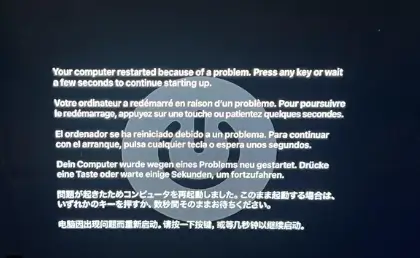
Your Mac restarts by itself. Or you get the grey “Your computer restarted because of a problem” screen. Often it happens when waking from sleep, and often it happens right in the middle of something important, because that is how these things go.
Note: kernel panics have many causes — RAM, third-party kernel extensions, a failing graphics chip, etc. — and storage is only one of them. But when a customer tells us “it restarts by itself two or three times a week”, storage is the first thing we test.
4. The Drive Appears and Disappears
You open Disk Utility and Macintosh HD is there. You check again an hour later and it is gone. Or the Mac boots fine on Monday, refuses on Tuesday, then works again on Wednesday.
Intermittent is not “not that bad”. Intermittent means the connection between your Mac and its storage is breaking down, and in our experience it very rarely gets better on its own.
5. Disk Utility First Aid Fails or Never Finishes
You run First Aid because that is what the internet told you to do, and you get something like “First Aid found corruption that needs to be repaired” or “First Aid process has failed” or a Couldn't mount disk error with a number after it.
That is your Mac telling you the filing system on the drive is damaged. Apple documents what First Aid is actually doing in its Disk Utility user guide. Please read the What NOT to Do section before you run it a second time. We are serious about that one.
6. Your Mac Goes Read-Only
You try to save a file and it refuses. You try to empty the Trash and it will not empty. Everything is readable but nothing can be written.
This is not a bug — it is a failsafe. Many SSDs deliberately flip themselves into read-only mode once they detect too many bad memory blocks, as a last-ditch attempt to protect what is still there. It is your drive’s way of saying it is done. Treat it as a one-way door and get the data off professionally before anything else happens.
7. The Flashing Folder With a Question Mark

The classic. You press power and instead of the Apple logo you get a folder with a flashing question mark, or a circle with a line through it (the “prohibitory sign”) after the logo appears.
Per Apple’s own support documentation, that folder means your Mac cannot find a startup disk with a working operating system on it. Sometimes that is a software problem — Apple’s own first step is to start up from macOS Recovery and check the disk. Very often, in our workshop, it is the drive.
Bonus sign — for older MacBooks only: if your MacBook is from roughly 2009 to 2012 and you hear clicking, beeping, grinding, or a repeated whirring noise, that is a mechanical hard disk with a physically failing read head. Shut it down immediately and do not power it on again. Every extra minute of spinning does more damage to the platter your files are sitting on.
And the 1 Warning Sign You Will Never Get
Here is the part that most articles will not tell you, and it is the whole reason we wrote this one.
Most modern MacBook SSDs die without a single warning sign.
We know that is not a satisfying thing to read after seven headings of warning signs. But it is the honest position, and it is the consensus among professional data recovery technicians too. One long-time recovery specialist put it perfectly on the r/datarecovery community: SSDs are “quietly failing in the background and then BOOF.”
That matches our bench experience exactly. A customer brings in a MacBook Air that was completely fine yesterday. No beachball, no warnings, no weird noises. Today it will not boot, and the drive is simply gone.
Your SSD is not a Nokia 3310. It is fast, it is silent, and it owes you nothing on the way out.
Old mechanical hard disks were, in a strange way, more polite. They screamed at you for weeks first. One of our senior technicians still says he misses the sound, because a clicking drive was a free early warning system. SSDs gave us speed and silence, and the silence cuts both ways.
So what does that mean for you practically?
- If you do get any of the 7 signs above, treat it as urgent. You have been given information most people never get.
- If you get nothing at all, do not assume everything is fine. Assume instead that your backup is the only thing standing between you and a very bad week.
- And please check that your backup is actually running. Nearly every heartbreaking case we handle involves someone who thought they were covered — an iCloud plan that filled up months ago, or a Google Drive sync that quietly stopped in October and nobody noticed. Syncing is not the same as backing up. Apple’s Time Machine onto a cheap external drive is still the most reliable thing most families can set up in ten minutes — we explain why in How Time Machine Backup Can Save Your Life, and we compare the alternatives in 4 Best Ways to Backup Your Mac.
And if one external drive is not enough. Time Machine on a single external drive has one obvious weakness: that drive is also a drive, and drives fail too. For a household running a few Macs, iPhones and iPads — or anyone sitting on years of photos and 4K video — we also supply and set up private cloud storage: a Synology NAS that lives in your own home and backs up every Mac in the house hourly over Wi-Fi via Time Machine, with no monthly subscription, encrypted remote access, and enough drive redundancy that your files survive one disk dying. It is not cheap — 2TB usable starts at RM2,694 as a one-time cost with configuration and setup included — and we are not going to pretend every family needs it. But if the reason you are reading this article is that you nearly lost ten years of photos, that is precisely the problem it was built to solve.
3 Problems That Look Exactly Like a Dead Hard Disk (But Are Not)
This is where a proper diagnosis earns its keep. Not every “my drive is dead” MacBook needs new storage, and we would rather tell you that than sell you a repair you do not need.
To put a rough number on it from our own bench: of every 10 MacBooks that arrive here described as “slow, hanging, maybe the hard disk”, we find roughly 3 genuinely have failing storage, about 4 turn out to be battery or thermal problems, and the remaining 3 are software or one of the three impostors below. That is why we diagnose before we quote.
1. The SATA Cable (MacBook Pro, roughly 2009–2012)
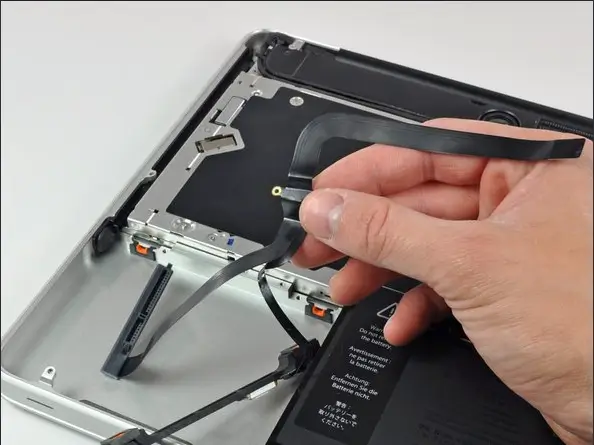
On these unibody models, the flat cable connecting the hard disk to the logic board runs across a machined edge inside the casing. Over the years the insulation wears through. The result is a MacBook that panics, freezes, refuses to boot, and looks for all the world like a dead drive.
Of the older MacBook Pros that arrive at our workshop already written off by someone else as “hard disk rosak”, a meaningful share only need this cable — a genuinely small part. We have had customers who had already bought a replacement SSD before coming to us, only to find the original drive was perfectly healthy the whole time. 🙂
2. A Third-Party SSD With an Adapter
If you or a previous shop upgraded an older MacBook’s SSD using a generic M.2 SSD plus a cheap adapter, there is a well-documented pattern where the whole thing works beautifully for around a year and then starts throwing kernel panics. Reseating it fixes things temporarily. Every diagnostic tool reports the drive as healthy, because the drive is healthy — the adapter is the weak link.
This is one reason we are fussy about the parts we use. A RM40 saving on an adapter is not a saving if it costs you a day of downtime a year later.
3. macOS Itself
This one is very current. Through early 2026, macOS Tahoe 26.3 developed a well-publicised problem where external drives simply stopped mounting — APFS, HFS+ and exFAT alike, across Samsung, SanDisk and WD drives that had worked perfectly the week before — AppleInsider ran a public callout trying to map the scale of it. Apple went on to list external-drive problems as Known Issues in its own macOS Tahoe 26.4 release notes.
Separately, plenty of Tahoe users have watched “System Data” balloon to 100GB or more and panicked, assuming the drive was failing. In a good number of those cases the storage is completely fine and the reporting is simply wrong.
This is controversial and we will say it plainly: sometimes the correct first move is to update macOS, and sometimes updating macOS is what caused your problem. Anyone who gives you a confident one-line answer without looking at your specific machine is guessing.
What NOT to Do Right Now
If you suspect MacBook hard disk failure, what you do in the next few hours matters more than what you do next week. These are the things that turn a recoverable drive into an unrecoverable one — and this is not just our opinion, it is standard guidance from professional data recovery labs.
| Do NOT | Why it makes things worse |
|---|---|
| Keep using the MacBook | Every read and write on a degrading drive causes further damage. A dying drive gets worse with use, not better. |
| Keep restarting it to “see if it works” | Repeated power cycles are one of the fastest ways to push a struggling drive over the edge. |
| Run Disk Utility First Aid again and again | This is the big one. First Aid writes to the drive while it is trying to repair it. On failing storage, recovery professionals consider repeated First Aid attempts actively destructive. |
| Install recovery software onto the failing drive | Installing anything writes new data over the exact files you are trying to save. |
| Click Initialise, Erase, or Reformat | This is the single most expensive button in this whole article. |
| Let three different shops “have a quick look” | Every failed attempt makes the next attempt harder. The more hands on your machine, the deeper the problem gets. |
| Assume iCloud has it | iCloud syncs. Sync mirrors deletions and corruption straight up to the cloud. It is not a backup. |
In short: if the data matters, stop using the machine and bring it in. A powered-off MacBook is a stable MacBook. And if all this started because something got spilled on it, go straight to our guide on MacBook water damage repair without losing data — liquid cases follow different rules, and the clock runs a lot faster.
The KissMyMac® Storage Era Map
What happens to your data depends almost entirely on how old your MacBook is. This is the table we end up drawing on scrap paper for customers about twice a week, so here it is properly. We call it our Storage Era Map, and it is the first thing we check when a machine lands on the bench.
| MacBook era | Storage type | If the storage fails | Data outlook |
|---|---|---|---|
| 2009–2012 | Mechanical hard disk, removable | Straight drive swap; often only the cable | Good — the drive can usually be read externally |
| 2012–2017 | Blade SSD, removable (proprietary) | Blade replacement | Good |
| 2016–2017 13″ Pro | Soldered | Board-level work required | Difficult — Apple’s old SSD service programme for these expired back in 2021 |
| 2018–2020 (Intel + T2) | Soldered and hardware-encrypted | Board-level repair required | Hard — encryption keys live in the T2 chip. If the board is dead, the data is locked inside it |
| 2020+ (M1–M5 Apple Silicon) | Soldered, tied to Secure Enclave | Logic board work required | Hard — and you cannot simply boot from an external SSD as a workaround |
Two things people ask us constantly about the bottom half of that table:
“Cannot just take the chip out and read it, is it?” Unfortunately no. On T2 and Apple Silicon Macs the data is encrypted before it ever reaches the memory chips, and the key never leaves the security chip on that specific board. Lifting the memory chips off gives you a pile of encrypted noise. Apple describes this key-handling design in its Platform Security Guide. The only real path is bringing that exact logic board back to life — which is component-level logic board repair, and it is exactly what we do.
“So if the shop replaces my logic board, I get my data back?” No — and please ask this question before you pay anyone. A replacement board gives you a working computer with an empty drive. Your files were on the old board. We have met customers who spent four figures on a board replacement believing it would return their data, and nobody told them otherwise until afterwards.
We would rather have the awkward conversation upfront. Sometimes our honest answer after diagnosis is that the memory chips themselves are gone and nobody on earth can recover it. That is rare, but it happens, and you deserve to hear it straight rather than after a big invoice.
Why “SMART Status: Verified” Means Almost Nothing
Somebody will tell you to check your drive health with an app. By all means do — but understand what you are looking at.
We recently saw a MacBook Pro whose health app cheerfully reported “SMART Status: OK, Overall Health Rating: Good” while the very same report logged over 1,400 input/output errors, the volume kept vanishing from Disk Utility, and First Aid had already failed outright. Good, apparently.
SMART is a rough self-report from the drive’s own controller. When the controller is the thing that is failing, its self-report is not worth much. A clean bill of health from an app is genuinely nice to see. It is not a clearance certificate, and it is certainly not a substitute for a backup.
How We Actually Diagnose It
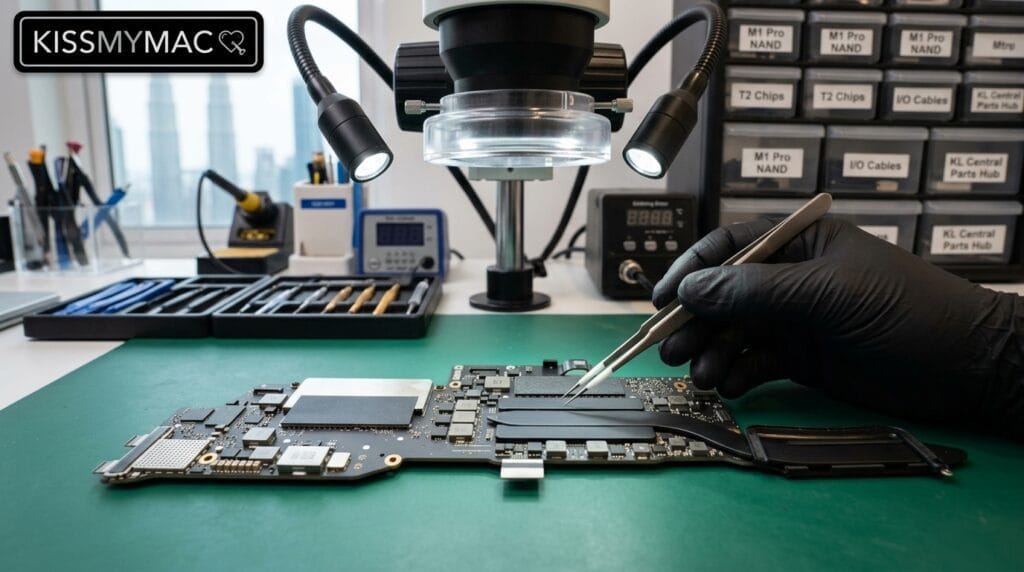
Every MacBook that comes to us for a suspected storage problem goes through the same four steps, and the first one is always FREE — no commitment, no obligation to repair.
- Intake and stabilise. We power the machine down and stop any further writes. If you tell us the data matters, nothing gets switched on again until we have a plan.
- Non-invasive checks first. Apple Diagnostics, boot behaviour, and whether the drive is even visible on the bus. This alone separates most software problems from hardware ones.
- Isolate the impostors. We test the cable, the adapter, and the OS before we ever suspect the storage itself. On older models this is where a lot of “dead drives” quietly come back to life.
- Board-level inspection. If it really is the storage, the board goes under the microscope so we can tell you honestly whether the data is retrievable or not — before you commit a single ringgit.
Turnaround: most straightforward storage jobs are back with you within 1–3 working days. Board-level work on soldered models takes longer, and we will give you a realistic date rather than an optimistic one, because we know you probably need the machine for work.
On your privacy: this is the question customers ask us most often and the one they are most shy about asking. Your files stay on your machine. We do not browse them, we do not copy them anywhere, and if a repair requires us to handle data, we tell you first and you decide.
One more thing worth knowing, since it surprises most customers: replacement logic boards are frequently refurbished units, which means the “new” storage inside can already carry someone else’s wear. We would rather repair the board you own than hand you a board with an unknown history.
Repair costs across our MacBook services run from RM80 to RM4,000 depending entirely on the model and what is actually wrong — which is precisely why we diagnose before quoting instead of shouting a number over the phone. And if you need to check with your wife or your husband before deciding, that is completely normal. We will put the quote in writing so you have something to show them.
📍 Kuala Lumpur (Taman Desa) · Damansara Uptown (Petaling Jaya) · Seremban
Far from us? WhatsApp us your MacBook model and year and describe what it is doing. We will tell you honestly whether it sounds urgent and whether it is worth the trip before you sit in traffic.
Before You Bring It In — a 2-Minute Checklist
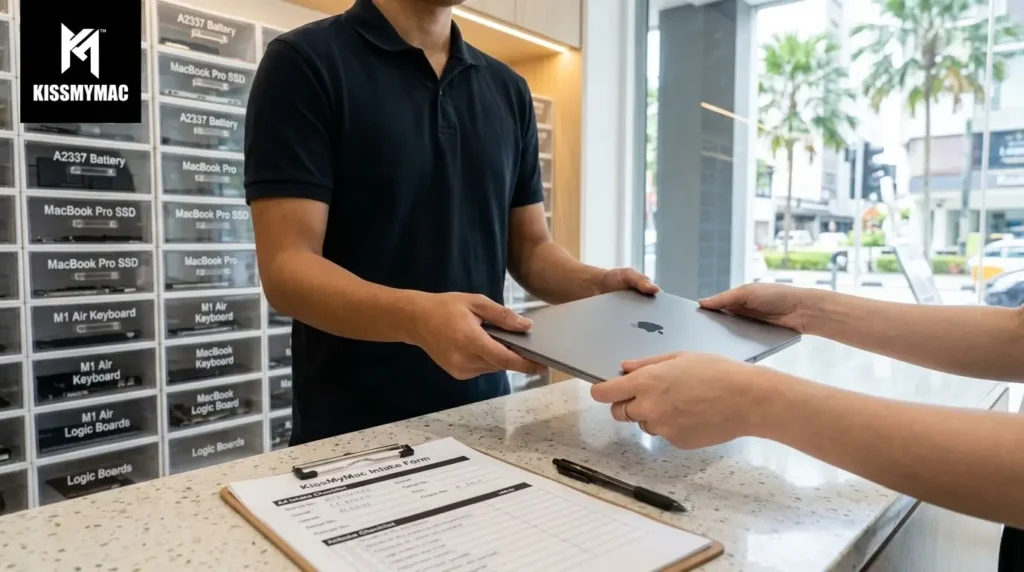
Print this or screenshot it. Going through these five points before you walk in saves us both time, and it genuinely improves your odds.
- [ ] Stop using the MacBook. Shut it down properly and leave it off. Do not “just check one more time”.
- [ ] Write down your model and year. Apple menu → About This Mac, if the machine still boots. If not, the model number is printed in tiny text on the underside.
- [ ] Note exactly what you saw and when it started. “Beachball since Raya”, “folder with question mark since Tuesday morning” — dates help us more than you would think.
- [ ] List what matters most. Photos? Work files? A specific folder? Knowing the priority changes how we approach the recovery.
- [ ] Check whether any backup exists. A Time Machine drive at home, a private cloud storage box, iCloud, Google Drive, an old external disk in a drawer, etc. Even a partial backup from six months ago changes the plan.
Frequently Asked Questions
How do I know if my MacBook hard disk is failing?
The most reliable signs are beachballing on simple tasks, files that will not open, random restarts, a drive that appears and disappears in Disk Utility, First Aid failing, the Mac going read-only, and the flashing folder with a question mark at startup. However, many modern MacBook SSDs fail with no warning at all, so the absence of symptoms does not mean the drive is healthy.
Does a MacBook SSD warn you before it fails?
Usually not. Mechanical hard disks in older MacBooks often clicked or whirred for weeks beforehand, but SSDs typically degrade silently and then stop working suddenly. This is why a working backup matters more than monitoring software.
Can data be recovered from a soldered MacBook SSD?
Sometimes — but not by removing the chips. On 2018-and-newer MacBooks the storage is encrypted by the T2 or Apple Silicon security chip, and the key never leaves that specific logic board. Recovery means repairing the original board at component level. If the memory chips themselves have failed, the data is not recoverable by anyone.
Should I run Disk Utility First Aid on a failing drive?
Once, at most. Repeated First Aid attempts write to a drive that is already struggling and are widely regarded by data recovery professionals as one of the fastest ways to make a recoverable drive unrecoverable. If your files matter, stop and get it diagnosed.
My MacBook says the disk is not readable. Is my data gone?
Not necessarily. “Disk not readable” often means the filing system is damaged rather than the hardware, and in many cases the files underneath are intact. Do not click Initialise or Erase — that is the one button that genuinely can end the story.
Is the flashing question mark folder always a dead hard disk?
No. It means your Mac cannot find a valid startup disk, which can be caused by a software problem, a corrupted system installation, a loose cable, or genuine drive failure. It needs diagnosis rather than guesswork.
Is my MacBook Pro still covered by Apple’s SSD replacement programme?
Almost certainly not. Apple’s 13-inch MacBook Pro (non Touch Bar) Solid-State Drive Service Program covered 128GB and 256GB drives sold between June 2017 and June 2018, and only for three years from purchase. That window closed in 2021. You can check current programmes on Apple’s service programmes page.
How much does MacBook hard disk replacement cost in Malaysia?
It depends heavily on whether your model has a removable drive or a soldered one, and whether you also need data recovered. Our MacBook repairs range from RM80 to RM4,000 overall. Come in for a FREE diagnosis and we will give you a firm number before you commit to anything.
How long does the repair take?
Most straightforward storage replacements are done within 1–3 working days. Board-level work on soldered models takes longer and depends on what we find during diagnosis.
Will you look at my personal files during the repair?
No. Your data stays on your machine, and if a repair step requires handling your files, we explain it and get your agreement first.
Is there a backup that survives the MacBook dying completely?
Yes. A Time Machine backup on an external drive covers most people. A private cloud storage device — a Synology NAS kept in your own home — goes further: it backs up every Mac in the house hourly over Wi-Fi, keeps multiple drives so your data survives one disk failing, takes snapshots to protect against ransomware, and carries no monthly subscription. We supply and configure these from RM2,694 for 2TB usable.
My MacBook is over 7 years old — is it even worth repairing?
Often yes, and sometimes no. Apple classes products as vintage after around 5 years and obsolete after 7, at which point official parts are no longer available — see Apple’s policy on obtaining service for older products. Independent component-level repair is frequently the only remaining option for these machines, and we will tell you honestly when a machine is not worth the money.
About KissMyMac®
KissMyMac® is an Apple Certified Independent Repair Provider with workshops in Kuala Lumpur (Taman Desa), Petaling Jaya (Damansara Uptown), and Seremban. We diagnose and repair MacBook storage, battery, screen, and logic-board faults every day — across both Intel and Apple Silicon machines — using Apple Diagnostics and genuine-quality parts. Where most shops replace an entire logic board, we repair it at component level, which is how we keep our customers’ data intact.
Reviewed and fact-checked by the KissMyMac® technical team. Model compatibility and Apple programme status verified September 2026 and reviewed quarterly. Figures quoted from our own workshop intake are observational and rounded, not a formal study.
Think your MacBook’s storage is going?
Do not wait for it to get worse — with storage faults, waiting is the one thing that reliably costs you data. Bring it in for a FREE diagnosis at any of our three workshops, or WhatsApp us your model and symptoms and we will tell you how urgent it sounds.
A backed-up Mac is a boring Mac. Boring is exactly what you want. 🙂